Privilege escalation — intro
- Date
- 2026-05-17
Usually, remote server access starts with a low-privileged user which does not give us complete access over a box. To gain full access, internal/local vulnerabilities need to be found that would escalate privileges to the root user on Linux or the administrator/SYSTEM user on Windows.
HackTricks and PayloadsAllTheThings has excellent checklists for both Linux and Windows local privilege escalation.
Many scripts can be run to automatically enumerate the server. Some common Linux enumeration scripts include LinEnum and linuxprivchecker, and for Windows include Seatbelt and JAWS.
Another useful tool for server enumeration is Privilege Escalation Awesome Scripts SUITE (PEASS), for both Linux and Windows.
Note: Running scripts create a lot of “noise” that may trigger anti-virus software or security monitoring software. Hence in some instances, we may want to do a manual enumeration of the system instead of running scripts.
Whenever a server is encountered that is running an old OS, kernel vulnerabilities may exist on unpatched versions of Linux and Windows.
For example, a script can pull the OS version number. The version number can be googled to find a CVE that can be exploited.
Another thing to look for is public exploits for installed software on the system. Older versions of software often contain unpatched vulnerabilities. The dpkg -l command can be used on Linux to look for installed programs, and in Windows the C:\Program Files directory can be looked at.
Another critical aspect is the privileges available to the user we have access to. There are three ways to exploit certain user privileges:
-
Sudo - used to allow low privilege users to execute commands as root without giving them access to the root user. sudo privileges can be checked with the sudo -l command:
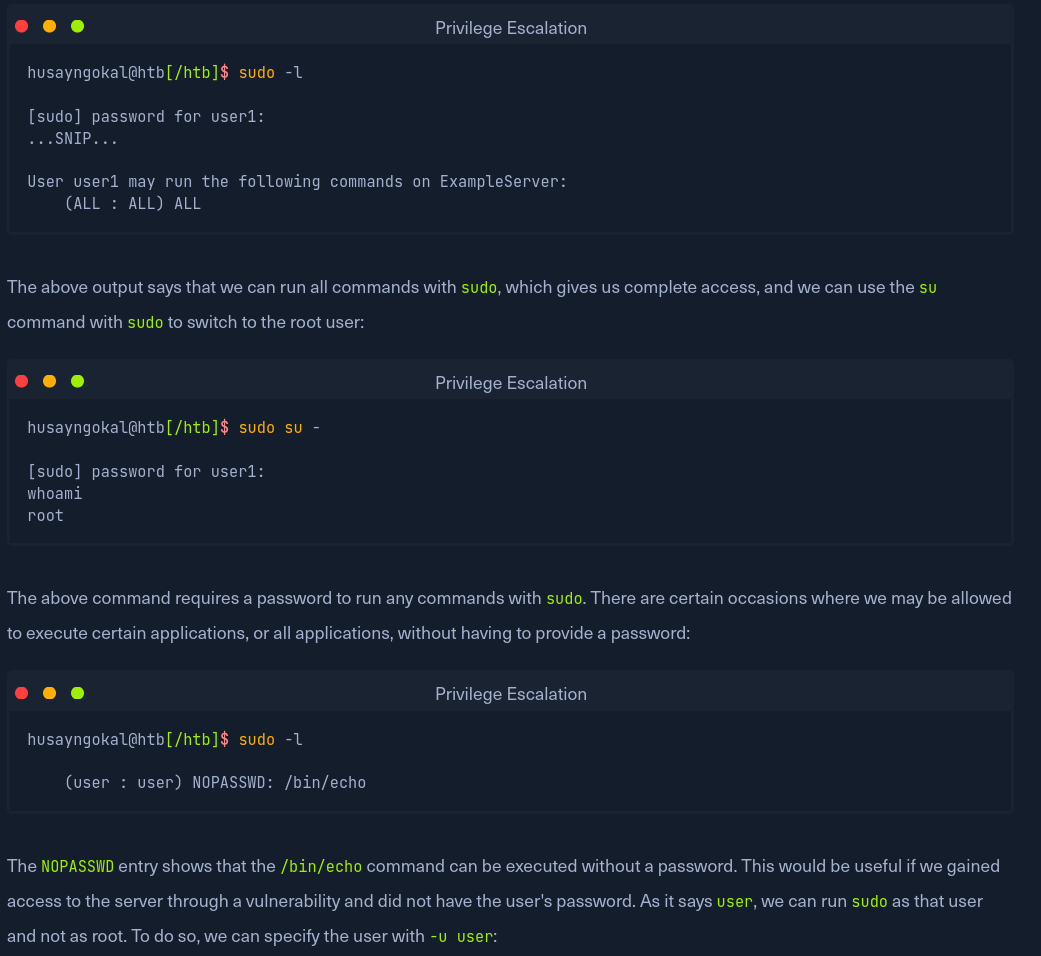
sudo can be run as a certain user instead of root using the -u flag:
sudo -u user COMMAND TARGETOnce an application is found that can run with sudo, ways can be looked for to exploit it to get a shell as the root user. GTFOBins contains a list of commands and how they can be exploited through sudo. We can search for the application we have sudo privilege over, and if it exists, it may tell us the exact command we should execute to gain root access using the sudo privilege we have.
LOLBAS contains a list of Windows applications which may be leveraged to perform functions like downloading files or executing commands in the context of a privileged user.
-
SUID
-
Windows Token Privileges
Scheduled tasks in Windows and Cron Jobs in Linux can be taken advantage of to escalate privileges, by adding new scheduled tasks/cron jobs and tricking them to execute malicious software.
The easiest way is to check if we can add new scheduled tasks. There are specific directories in Linux that can be utilized to add new cron jobs if write permissions are available, particularly:
- /etc/crontab
- /etc/cron.d
- /var/spool/cron/crontabs/root
If we can write to a directory called by a cron job, we can write a bash script with a reverse shell command, which should send us a reverse shell when executed.
Files often contain exposed credentials that can be read. This is common with configuration files, log files and user history files (bash_history in Linux and PSReadLine in Windows). The enumeration scripts mentioned earlier can look for potential passwords in these files.
Passwords found may be vulnerable to a Password Reuse attack. If one password works for one application/software, there is a high chance that it may be re-used for privilege escalation.
If read access to the .ssh directory for a specific user is available, their private ssh keys can be read in /home/user/.ssh/id_rsa or /root/.ssh/id_rsa, and be used to log into the server.
The id_rsa file can be copied, downloaded and used to login like so:
vi id_rsa
chmod 600 id_rsa
ssh root@IP -i id_rsa
The reason chmod is used is to make the file’s permissions more restrictive. If ssh keys have lax permissions, i.e., maybe read by other people, the ssh server would prevent them from working.
If write access is available to the /.ssh/ directory, public keys can be placed in the user’s ssh directory at /home/user/.ssh/authorized_keys. This is usually used to gain ssh access after gaining a shell as that user.
Note: The current SSH configuration will not accept keys written by other users, so it will only work if we have already gained control over that user. We must first create a new key with ssh-keygen and the -f flag to specify the output file:
ssh-keygen -f KEYFILE_NAME
This generates two files: KEYFILE_NAME and KEYFILE_NAME.pub. The .pub file has to be copied to the remote machine into /root/.ssh/authorized_keys. Then, the remote server should allow us to log in as that user by using the private key.